AI QuickStart
Welcome! This QuickStart shows you how to use Claude, Codex, Gemini or Muse to build Xojo apps. Instead of dragging controls and writing code yourself, you describe the app you want and the agent builds it for you, with Xojo picking up the changes automatically. It may take you up to 15 minutes to complete this QuickStart.
Note
To save a project in the text format that AI agents use, you need a Xojo license. Without a license you can still experiment with an AI agent, but you won't be able to save the project (only the binary format is available). A license also lets you build apps you can distribute to others.
Creating an AI-enabled project
You'll need Xojo 2026 R3 or later.
Launch Xojo. The Project Chooser window appears.
Choose the type of project you want to build: Desktop, Web, iOS, Android or Console.
Check the for AI (Agentic Mode) box.
Enter your Application Name and click Create.
A dialog box will ask where you want to save your project. Select your Desktop and click Save.
Xojo creates the project in the text format and adds the agent instruction files to the project folder. That's all the setup Xojo needs.
Giving your AI agent access to your project
Next, you need to give your AI agent access to the project folder you just saved to your Desktop, so it can read and edit your project files. The steps are a little different for each agent; below you'll find basic instructions for Claude, Codex, Gemini and Muse. If your agent asks for permission to access the folder, give it. This is typically something you only have to do once.
Tip
Don't have an AI agent yet? We recommend starting with Claude.
Claude
Switch to code mode: choose the Go menu, then select Code.
Click New in the upper left corner of the window.
To the right of Local, click the folder button (it reads No Folder if no folder is currently open) and choose Open Folder, then select the Xojo project folder on your Desktop.
Codex
Click the ChatGPT button in the upper-left corner of the ChatGPT window and choose Codex.
In the same pane, hover over Projects and click the + symbol to add a new project.
In the Create Project dialog box that appears, give your project a name.
Click in the Source Folders box and select the Xojo project folder on your Desktop.
Press the Create Project button.
Gemini
Switch to antigravity mode: click the Antigravity button, in the upper-right corner.
Above the area prompt field, you will see a "No Project" menu (or it may have the name of a project if you've used this mode before). Choose New Project.
In the open file dialog box that appears, choose the Xojo project folder on your desktop.
Note
When you are finishing building apps with Gemini, click the Exit Antigravity button to go back to the normal chat mode.
Muse
Tell Muse to use the folder you just created in Xojo on your Desktop. Name the folder explicitly, for example: Using the TipCalculator folder on my desktop, followed by your prompt (such as the tip calculator prompt below).
Your first prompt
For your first prompt, you are going to build a simple tip calculator. Enter this prompt:
Build a tip calculator. It should have a place to enter
the bill amount, a slider for the tip percentage from 0 to 30,
and should show the tip amount and the total.
Notice how specific the prompt is about what the app should do and what it should look like. The more concrete your description, the better the result.
The agent will edit the project files, and you'll see the changes appear in Xojo as it works. Wait for the agent to tell you it's ready. When your agent is finished, it will explain what it did and run the app it built for you. If something isn't right, just tell the agent what to change: "Make the total label bigger and bold."
Your agent might need your permission to see your screen to make sure the app is working as you expect. If it needs to, it will ask you for permission first. This is typically something you only have to do once.
Be patient while the agent works; it may take a few minutes. And don't be surprised if the result looks a little different from what you pictured: each agent will produce a slightly different app, and even asking the same agent to do the same thing twice can give you a slightly different app. That's just the nature of AI.
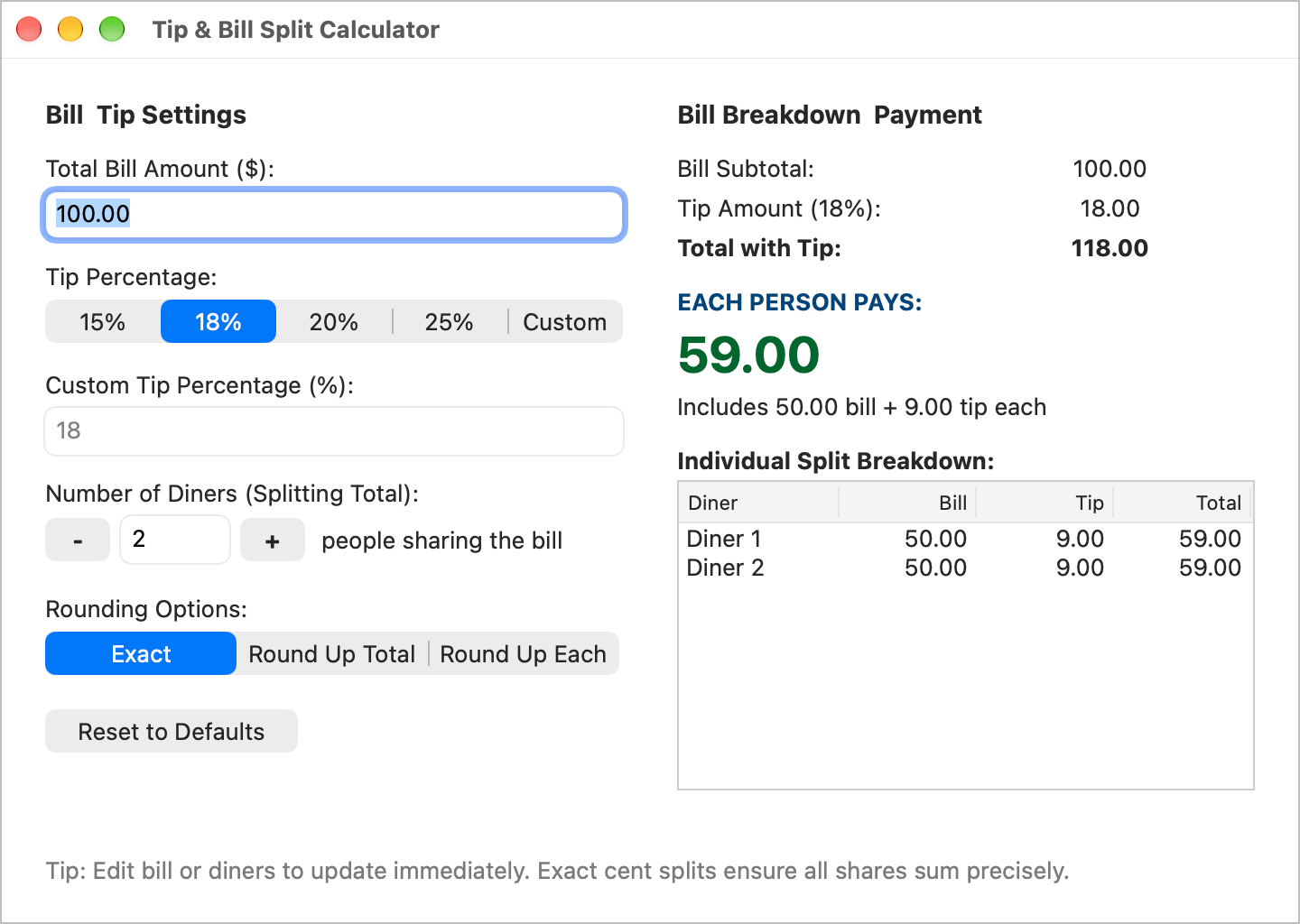
Once your app is running, you can keep modifying it with additional prompts. For example:
Add a place where I enter the number of people splitting
the bill, and show each person's share.
Your app will look something like this:
Sample prompts to try
For each of these, go through the steps above to create a new AI-enabled project in Xojo and point your agent at it, then enter the prompt.
Checkers game
This prompt is suitable for Desktop, Web, iOS and Android projects:
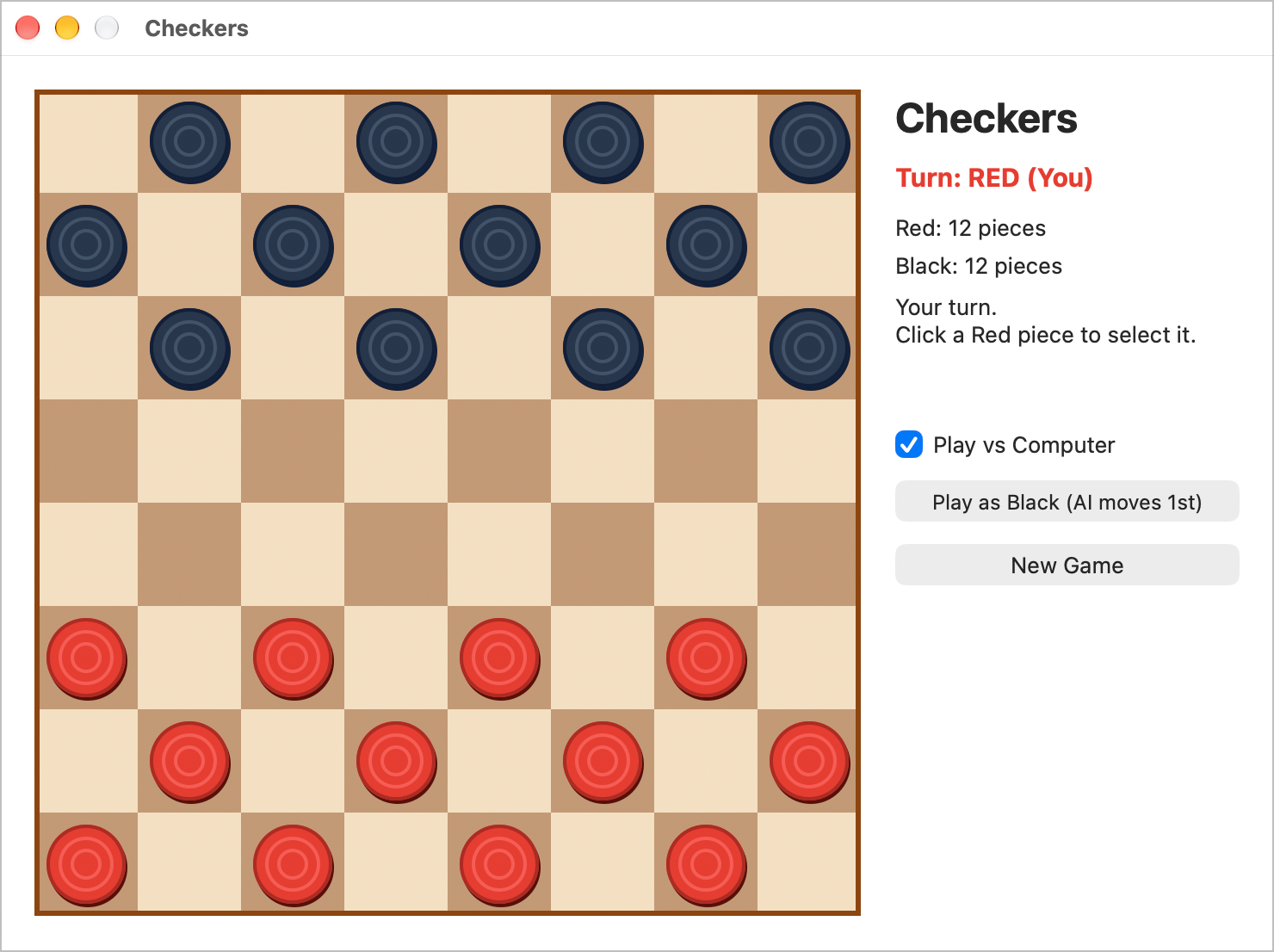
Build a two-player checkers game. Draw an 8x8 board with red
and black pieces. Players click a piece to select it, legal moves
are highlighted, and clicking a highlighted square moves there.
Promote pieces to kings when they reach the far row, remove jumped
pieces, and declare a winner when one side has no pieces left.
Second prompt:
Add the ability for me to play against the computer.
Your app will look something like this:
Stock tracker
This prompt is suitable for Desktop, Web, iOS and Android projects:
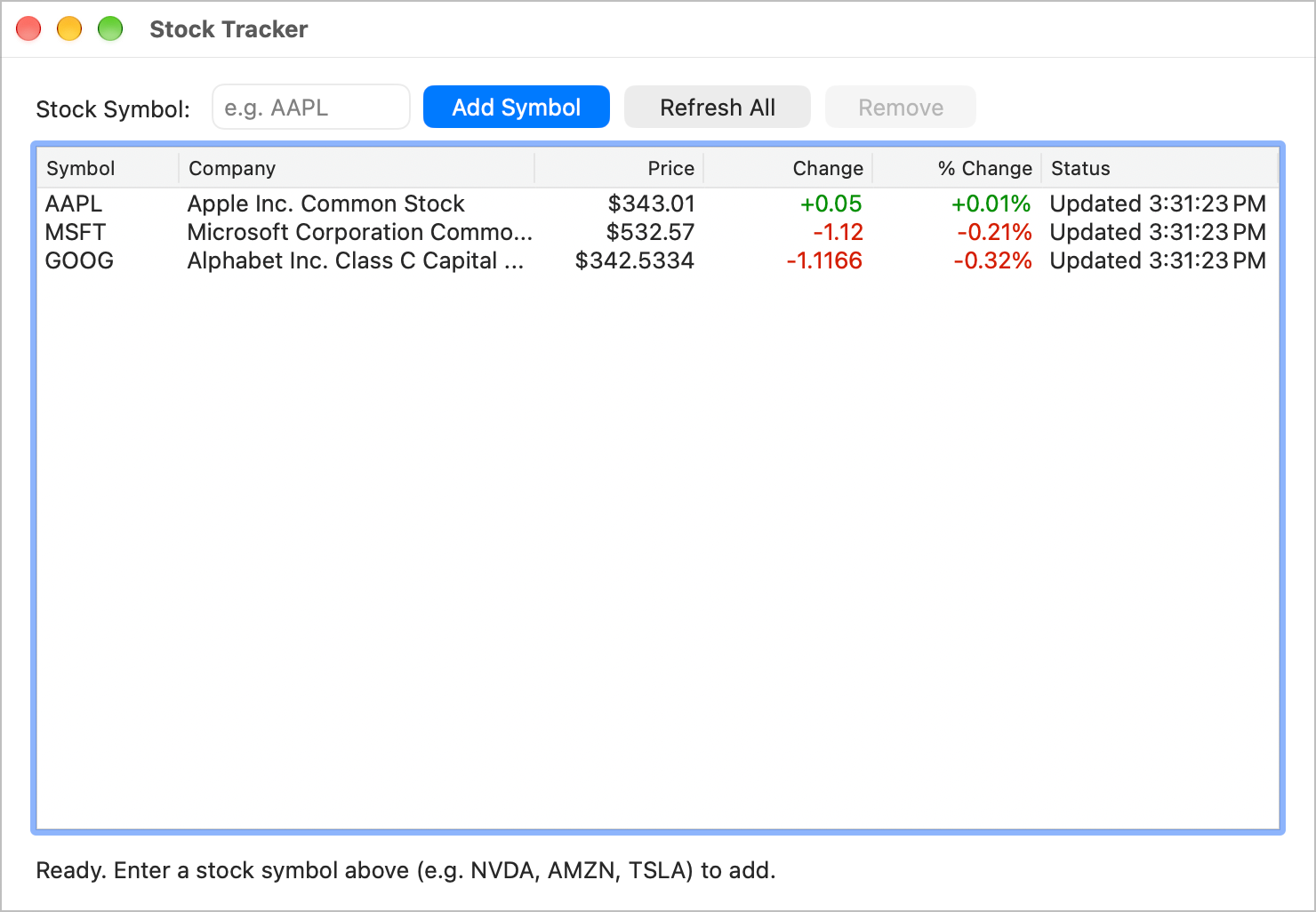
Build a stock tracker app. Let me enter stock ticker symbols into
a list. For each symbol, fetch the current price over the network
and display it along with the day's change, green for up and red
for down. Add a Refresh button that updates all prices, and handle
network errors gracefully.
Your app will look something like this:
Second prompt:
Now add the ability to track how many shares I own, the price I paid
and show my current profit or loss per stock. Save the data to a file
so that I don't have to reenter it each time I use the app.
Customer management system
This prompt is suitable for Desktop and Web projects. You will need a Xojo license for this one.
Start from the DBKit example project:
In the Project Chooser, click Examples and search for "DBKit Empty Project - Desktop" or "DBKit Empty Project - Web".
Once it opens, choose File > Save As.
Select Xojo Project from the Format menu and save it to a folder called Customers on your Desktop.
Choose File > Agentic Mode so your AI agent can work with the project.
Enter this prompt:
Using DBKit, create a customer management system using a SQLite
database. Add fields for first name, last name, company name, email
address. I want to be able to search, select a customer, edit, delete
and create new customer records. Add a few sample records to get me started.
Tips for working with your agent
Be specific, but use your own words. Describe what you want the app to do and what it should look like. You don't need to know the names of Xojo's controls; "a place to enter the bill amount" works just as well as "a text field".
Build in steps. Ask for the basic app first, run it, then add features one at a time. Small iterations are easier to fix than one giant prompt.
Let the agent check its own work. If something goes wrong, tell the agent to run the project. It can look at any errors and correct them itself.
Don't be discouraged if your agent is taking a long time. Like people, the longer the process takes, often (but not always) the better the result.
Try modifying the interface yourself. The project is a normal Xojo project, so open it up and try moving controls around or changing their properties. If you mess anything up, just tell your agent what happened and it will help you fix it.
How it works
Xojo projects can be saved in a text-based format that AI agents can read and edit. When you create an AI-enabled project, Xojo adds instruction files (AGENTS.md and XOJO-CODING.md) that teach your agent Xojo's code conventions, where the documentation is, and how to work with the project. You then point your agent at the project folder and tell it what to build.
The agent edits the project files directly. Xojo runs in Agentic mode, so it notices the changes and reloads the project automatically; you don't need to do anything. When you want to test, the agent can ask Xojo to run the project and then read back any compile errors, fix them, and try again. You stay in the loop the whole time: you can run the app yourself in Xojo at any point, make changes by hand, and keep prompting the agent.
Next steps
Now that you've built your first app with an AI agent, try one of the sample prompts above, or describe an app of your own. When you're ready to learn what the agent is doing under the hood, work through the Desktop QuickStart or Web QuickStart to learn Xojo the hands-on way.
See also