Quickly building a database client app for the desktop with DBKit
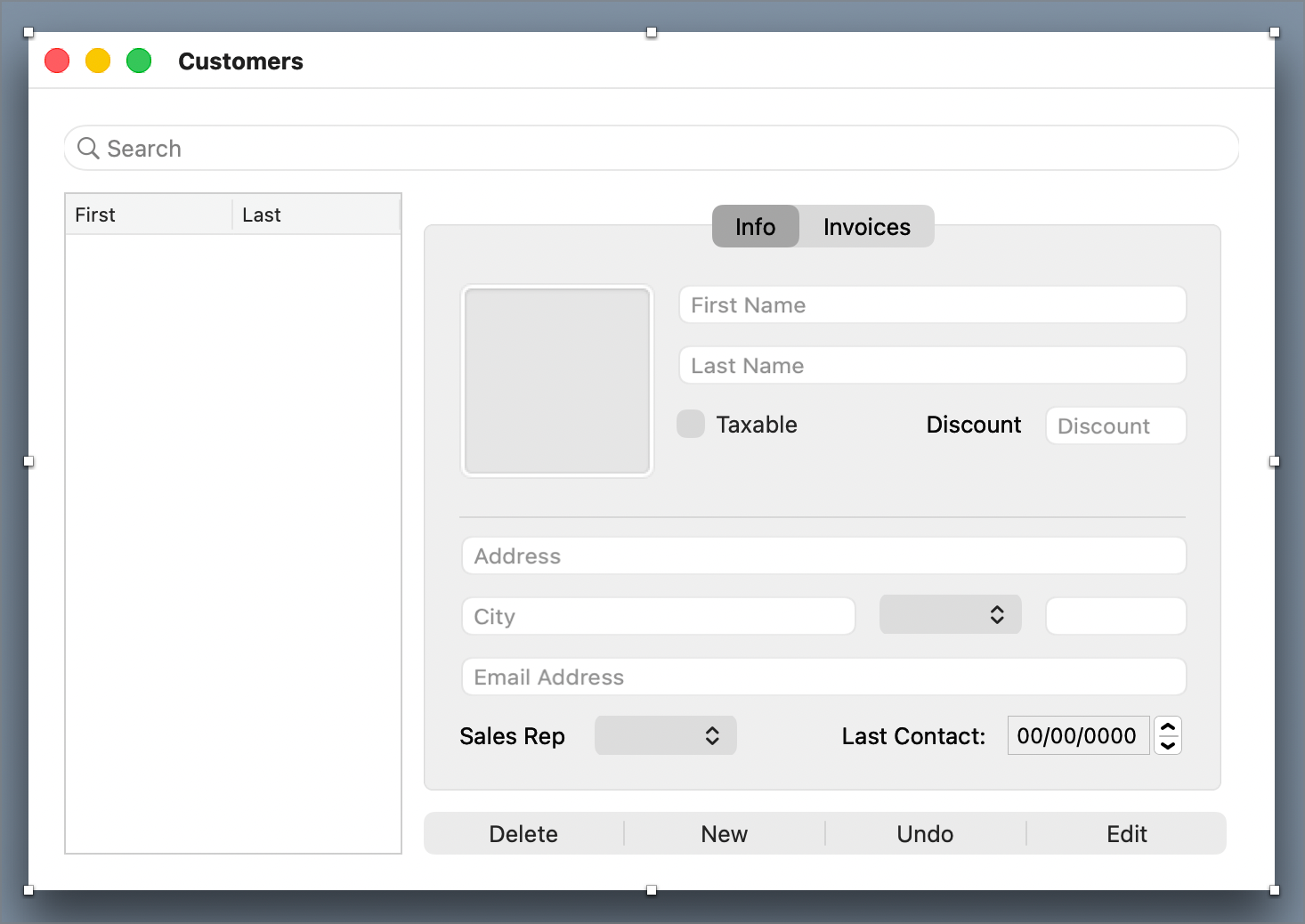
In this tutorial, you will recreate the single window example in the DBKit-Desktop example project. The tutorial takes about 30 minutes to complete. There is a web tutorial as well.
Note
If you haven't completed the Xojo Tutorial, it is suggested you do that first.
The end result will look like this:
Creating the project
Download the
DBKitDatabasefile. This contains the database you will need to complete the tutorial.Uncompress the file which will create the EddiesElectronics.sqlite file.
Create a new desktop project.
Save the project.
Open the DBKit-Desktop example project (choose File > New Project, then click Examples > Databases > DBKit-Desktop) then copy the DBKit module from the example into your project.
Important
Always copy DBKit from the DBKit-Desktop example project when using it with desktop projects as that will always be the latest version.
Next we need to copy the EddiesElectronics.sqlite database file into your app when it is built.
In the Build Settings section of the Navigator, select the OS your are going to build for (Linux, macOS or Windows).
Add a Copy Files Build Step (Insert > Build Step > Copy Files).
In the Inspector, change the name to
CopyDB.From the DBKit Resources folder you downloaded, drag the EddiesElectronics.sqlite database file into the area in the middle of the IDE below where it says "Drag files into the list below for this step".
In the Inspector, change the App Parent Folder to Resources Folder.
Because the database is being copied each time you run your project, you will be able to edit it all you'd like without worrying that your changes are permanent. So add, edit and delete to your heart's content.
Connecting to the database
Now let's get connected to the database.
From the menubar, choose Insert > DatabaseConnection > SQLiteDatabase.
In the Inspector, rename the DatabaseConnection to
Eddies.In the Navigator, expand the Eddies DatabaseConnection.
Select the Development database target.
In the Inspector, click the pencil icon next to the File property.
In the open file dialog box that appears, find the DBKit Resources folder and choose the EddiesElectronics.sqlite database inside it.
You now have a DatabaseConnection to the EddiesElectronics SQLite database.
Tip
This DatabaseConnection could connect to a MySQL, ODBC or PostgreSQL database as well. The mechanism for connecting to any database is essentially the same. In a single project, you can use DBKit to connect to any number of databases of any of the supported types.
Turning the window into a DBKit window
The next step is to turn Window1 into a DBKit-enabled Window.
Click on Window1 to select it.
In the Inspector, set the Name property to
CustomersIn the Inspector, set the Title property to
Customers.In the Inspector, click the pencil icon next to the Super property.
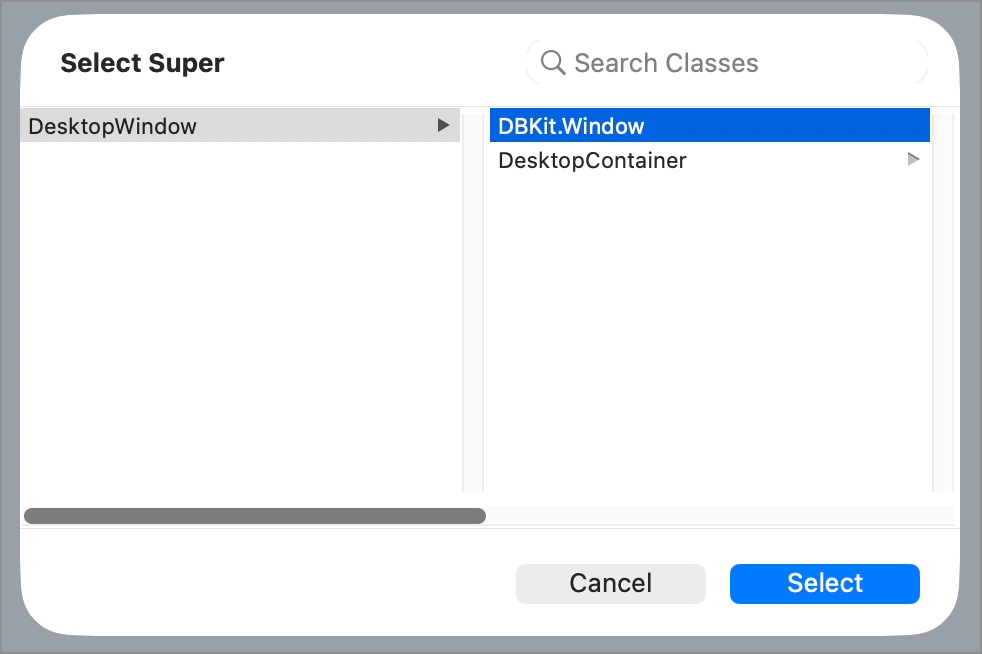
In the Select Super dialog box that appears, choose DBKit.Window then click the Select button.
The Customers window is now a DBKit.Window instead of just a regular DesktopWindow. This adds a lot of database functionality.
Scroll the Inspector down to the bottom. Notice that there's now a DBKit section.
In the DBKit section, set the Database property to Eddies.
Set the Table Name to
customers.
The Customers window can now connect to the Eddies database and access the Customers table.
Adding the ability to search for customers
Now let's add the ability to search for customers.
First, let's make the window a little bigger. In the Inspector, set the Width property to
700and the Height property to450.Set the Minimum Width to
700and the Minimum Height to450.Click the Library icon in the toolbar to display the Library.
Drag a SearchField to the Customers window.
Position it in the upper-left corner.
Resize it so that it's as wide as the window.
Next let's configure this control. Click the Inspector button in the toolbar to show the Inspector.
In Inspector, lock the right side of the control.
Now we need to make this a DBKit.SearchField. Click the pencil icon next to the Super property.
Select DBKit.SearchField then click the Select button. Notice this control now has a DBKit section in the Inspector.
Displaying the search results
Now you can search customers but you will need a place to display the results so let's add a Table.
Switch back to the Library and drag a Table from the Library to the window.
Position it on the left-side of the window below the SearchField.
Resize it so that the bottom extends to the bottom guideline of the window.
In the Inspector, set the name of the Table to
SearchResults.Lock the bottom of the control.
Now we need to make this a DBKit.Table. Click the pencil icon next to the Super property.
Select DBKit.Table then click the Select button. Notice that this control has a DBKit section in the Inspector.
The Table is a bit wide. Let's make it more narrow. In the Inspector, set the Width property to
190.In the Inspector, set the Column Count property to
2.Click the Pencil icon that appears when you hover over the SearchResults Table in the Window Editor.
Click the Add button then set the two column headers to
FirstandLast.In the Inspector, set the Column Names property to
firstName,lastName.This would be a good time to save your project so do that now.
You can now search and display the results. Let's give it a try. Run your project.
If all is well, the Table will display all of the customers by default. If either column is blank, you may have mistyped the Column Names so go back to the Inspector and check that the Column Names property is set to
firstname,lastname.In the SearchField, try typing first few characters of any first or last name you see. The SearchField automatically searches as you type, looking in all the columns of the DBKit.Table (if there is one in the window) for values that begin with the value you have typed.
Displaying the selected row
You are going to need room for both controls to display customer information and to display their invoices so let's add a TabPanel:
Drag a TabPanel to the Customers window.
Position it below the SearchField and to the left of the Table.
Resize the TabPanel so that the right side is aligned with the right margin of the window.
Resize the bottom of the TabPanel to match the bottom of the Table.
In the Inspector, turn on LockRight and LockBottom.
Next we will add some controls that can display other database columns (address, city, etc.) when the user clicks on a customer in the SearchResults Table. By naming the controls to match the column names in the customers table of the database, DBKit will automatically populate them.
Let's start by showing the customer's photo:
Drag an ImageViewer to the TabPanel in the Customers window.
Position it in the upper-left corner of the TabPanel.
Set the following properties in the Inspector.
Item |
Value |
|---|---|
Name |
Photo |
Super |
DBKit.ImageViewer |
Width |
110 |
Height |
110 |
Run your project and click on some customers to see their photos.
Note
If you see the Debugger instead of your project, that means an Exception occurred. Chances are, the name of the control isn't matching the name of the column from the database. Make sure it's Photo. The Debugger is only displayed because you are running your project from the IDE. In a built app an error message would be displayed.
Now let's add controls to display the first name and last name.
Drag a TextField to the TabPanel.
Position it to the right of the Photo ImageViewer.
Resize it so that the right side is at the right margin guide of the TabPanel.
Set the following properties in the Inspector.
Item |
Value |
|---|---|
Name |
FirstName |
Super |
DBKit.TextField |
Lock |
Right |
Hint |
First Name |
Text Case |
Titlecase |
Note
At any time if you want to try out your project after adding a control, go ahead and run it. Remember if you get an error, check the control names as they need to match the column names from the database.
Now let's add a LastName field.
To save time, duplicate the FirstName field you already added.
Position the duplicate underneath the FirstName field.
Set the Name property to
LastName.Set the Hint property to
Last Name.
Note
You may have noticed that you can select the contents of the fields but not edit them. We will get to that in a bit.
Now let's add a control to display the customer's taxable status.
Drag a CheckBox to the TabPanel.
Position it just below and aligned to the left side of the LastName TextField.
Set the following properties in the Inspector.
Item |
Value |
|---|---|
Name |
Taxable |
Super |
DBKit.CheckBox |
Caption |
Taxable |
Height |
22 |
Now let's add a control to display the customer's discount percentage.
Drag a TextField to the TabPanel.
Position to the right of the Taxable CheckBox with the right side aligned with the LastName TextField above it.
Set the Name property to
Discount.Set the Hint property to
Discount.
This field needs to only allow numbers to be entered so it will be a DBKit.NumberField. To make it a DBKit.NumberField:
Set the Super property as you have before but this time, click on DBKit.TextField in the Set Super dialog box, then click on then DBKit.NumberField.
Click the OK button to set it.
In the DBKit section, set the Type property to Percentage.
Unlock the left side which will automatically lock the right side.
Now it needs a label so drag a Label to the TabPanel and position it to the left of the Discount field.
Set the Text property to
Discount.Set the Height property to
22.Set the Text Alignment property to Right.
Unlock the left side of the Label.
Now let's add a DesktopSeparator control to separate these controls from the address controls you are about to add.
Drag a DesktopSeparator control to the TabPanel.
Position it below the other controls.
Resize it so the right side aligns with the right side of the Discount NumberField.
Lock the right side.
Now let's add TextField to display the customer's address.
Duplicate the LastName TextField and position it below the Line control, aligned left with the Photo field.
Resize it so that its right side is at the right margin guide of the window.
Set the following properties in the Inspector.
Item |
Value |
|---|---|
Name |
Address |
Hint |
Address |
Now let's add a TextField to display the customer's city.
Duplicate the Address TextField and position it below the Address TextField and aligned to its left side.
Set the following properties in the Inspector.
Item |
Value |
|---|---|
Name |
City |
Width |
200 |
LockRight |
Off |
Hint |
City |
Now let's add a PopupMenu to display the customer's state or region.
Drag a PopupMenu to the TabPanel and position it to the right of the City TextField.
Set the following properties in the Inspector.
Item |
Value |
|---|---|
Name |
StateOrRegion |
Super |
DBKit.PopupMenu |
Height |
22 |
Tip
After setting the Height to 22 you will find that it's easier to position the PopupMenu.
Rather than type in all the US state abbreviations, we are going to automatically populate this PopupMenu with rows from a table in the database.
To automatically populate the the PopupMenu, set the AutoPopulate Table Name property to
States.Set the AutoPopulate Column Name to
Abbreviation.Run your project at this point.
You should see the PopupMenu defaulting to the state abbreviation for the customer's state.
Note
Remember if you get an error, check the AutoPopulate Table Name and AutoPopulate Column Name values as they need to match the column names from the database.
Now let's add a TextField to display the customer's postal code.
Duplicate the City TextField and position it to the right of the StateOrRegion PopupMenu.
Resize the right size to align it with the right side of the Address TextField.
Set the following properties in the Inspector.
Item |
Value |
|---|---|
Name |
PostalCode |
Hint |
PostalCode |
LockLeft |
Off |
Now let's add a Textfield to display the customer's email address.
Duplicate the Address TextField.
Place the duplicate below the City TextField, leaving it the same width.
Change the Name property to
Email.Change the Hint property to
Email Address.
Now let's add another PopupMenu this time to display the customer's sales rep.
Drag a label to the TabPanel placing it below the Email TextField and left-aligned with it.
Set the following properties in the Inspector.
Item |
Value |
|---|---|
Height |
22 |
Text |
Sales Rep |
Reduce the Width so that it's only as wide as necessary to display the text.
Drag a PopupMenu to the TabPanel, placing it to the right of the Label you just added.
Set the following properties in the Inspector.
Item |
Value |
|---|---|
Name |
SalesRep |
Super |
DBKit.PopupMenu |
Height |
22 |
AutoPopulate Table Name |
SalesReps |
AutoPopulate Column Name |
Name |
The customer row does not store the sale's reps name. It stores the primary key for the assigned sales rep row in the SalesReps table. Fortunately, DBKit.PopupMenu is designed to handle this.
Set the Auto Populate Storage Type to PrimaryKey.
Now let's add a DateTimePicker control to display the LastContact column. DBKit provides a custom DateTimePicker control that provides the same user experience on all desktop platforms.
Drag a DesktopCanvas to the TabPanel.
Set the following properties in the Inspector.
Item |
Value |
|---|---|
Name |
LastContact |
Super |
DBKit.DateTimePicker |
Height |
22 |
Drag the LastContact control so that it's right-aligned with the Email control and horizontally aligned with the SalesRep PopupMenu.
Drag a DesktopLabel control to the TabPanel. This will be the label for the LastContact DateTimePicker control.
Set the following properties in the Inspector.
Item |
Value |
|---|---|
Height |
22 |
LockLeft |
Off |
Text |
Last Contact |
Text Alignment |
Right |
Position it to the left of the LastContact DateTimePicker.
Run the project.
Now you have all the customer information controls ready. The TabPanel is going to show those and a list of the customer's invoices. So let's update the tabs accordingly.
Click the TabPanel to select it.
In the Inspector, click the Edit button for the Panels property.
Change Tab0 to
Info.Change Tab1 to
Invoices.Click the OK button to close the dialog box.
Next we want the user to be able to see a list of the customer's invoices. To make it possible for DBKit to automatically load the invoices for the displayed customer, it needs to know the relationship between the Customers table and the Invoices table.
Click on the Customers window to select it.
In the Inspector, scroll down until you see the DBKit section.
Click on the Pencil icon next to the TableRelationships property.
In the dialog box that appears, type
invoices.customerid=customers.id.Click the OK button to close the dialog box.
This tells DBKit how invoices are related to customers: by the customerid column. This allows DBKit to automatically load the related invoice rows.
Now let's add a Table so the user can see the invoices for this customer.
Click the Invoices tab on the TabPanel.
Drag a Table from the Library to the TabPanel.
Position it in the upper-left corner of the TabPanel.
Resize it to fill the TabPanel.
Set the following properties in the Inspector.
Item |
Value |
|---|---|
Super |
DBKit.Table |
LockRight |
On |
LockBottom |
On |
ColumnCount |
3 |
Table Name |
invoices |
Column Names |
invoiceno,invoicedate,invoiceamount |
Column Formats |
String,DateTime.FormatStyles.Short,"\$###,##0.00" |
As you have likely guessed, the Column Names property tells DBKit.Table the columns you wish to display and order you wish them displayed in.
The Column Formats property tells DBKit.Table the format of each column. Don't forget the double quotes around the InvoiceAmount format.
Now let's add the Table column headers.
Click the Pencil icon that appears on the Table when you hover over it in the Window Editor.
Click the Add button to add the header row.
Set the headings of the columns to
Number,Date, andAmount.Run the project. Click on different customers to see that their invoices are automatically displayed.
Up to this point the custom records have been in read-only mode. The last step is to make it possible to edit the selected customer.
To do that, we need to add a DBKit.EditingButton.
We need to make sure room for this control so drag the bottom of the TabPanel up to leave just enough room for a border below the Sales Rep PopupMenu and the Last Contact DateTimePicker.
From the Library drag out a SegmentedButton control.
Position in on the Customers window, below the TabPanel and left-aligned with it.
Stretch the SegmentedButton so that it's as wide as the TabPanel.
Set the following properties in the Inspector.
Item |
Value |
|---|---|
Super |
DBKit.EditingButton |
LockTop |
Off |
LockRight |
On |
Delete Row |
On |
New Row |
On |
Undo Row Changes |
On |
Edit Row |
On |
Click the Edit button next to the Segments property.
Change the first segment (One) to
Delete.Change the second segment (Two) to
New.Add a third segment and set it's caption to
Undo.Add a fourth segment and set it's caption to
Edit.Click the OK button to close the Segment Editor.
Run your project. Try editing customers, deleting customers, and making new customers.
As you can see, DBKit provides a lot of functionality without requiring that you write any code at all. That's its job: getting data from your database into the user interface.
Next Steps
Explore the Invoices, Products and Maintenance examples in the DBKit-Desktop example project. They show off how to create an interface where the list of rows is in a separate window from the details of a row, how to create an interface that doesn't display rows in a Table and how to use DBKit.Container to display DBKit controls inside a window that is not a DBKit.Window.
Explore the DBKit-Web example project.
Review the DBKit Overview.
Review the documentation for the various DBKit classes.
Start using DBKit in your own projects.
If you have an existing project that uses DBKit v1, check out the DBKit v2 Conversion Guide.